
Setting up a home office is easier when every purchase answers a real need. The best route is to start with your routine, then match screen size, print habits and desk space to the right equipment. HP Store is a useful place to do that because its official range brings laptops, desktops, printers, monitors and support together. This guide walks through the decisions in order, with practical HP picks to compare as you go.
When you shop through the links in this article, the retailer may pay us a commission. Your price stays the same.
Workday needs
Before browsing, note the tasks you repeat most often. A student writing assignments needs a different setup from a designer handling large files, while a family office may care most about easy printing and simple support. Start with the workload, not a tempting specification.
- Video calls, email and browser-based work
- Documents, forms and occasional colour printing
- Photo, design or creative software
- Gaming, streaming or entertainment after hours
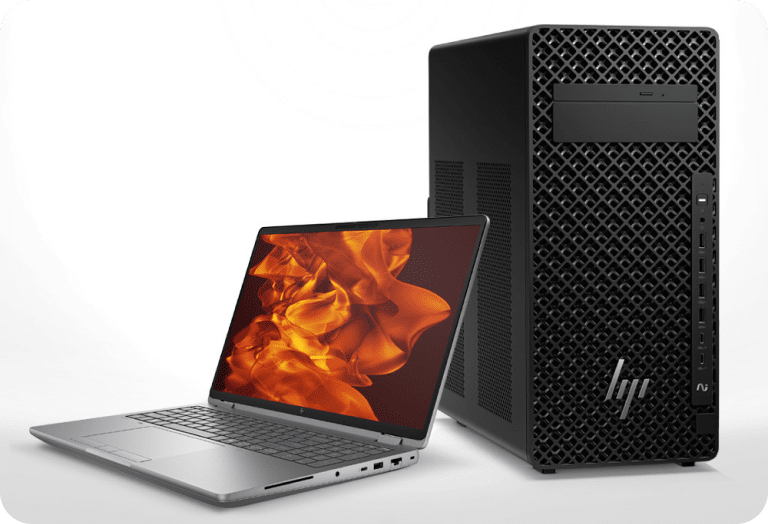
Next, decide whether portability matters. If you move between a desk, kitchen table and classroom, a laptop keeps the setup flexible. If your equipment will stay in one place, a desktop can offer a tidier upgrade path. The HP laptop collection is a sensible first comparison for mobile work, while the HP desktop range suits a permanent workstation.
Computer choice
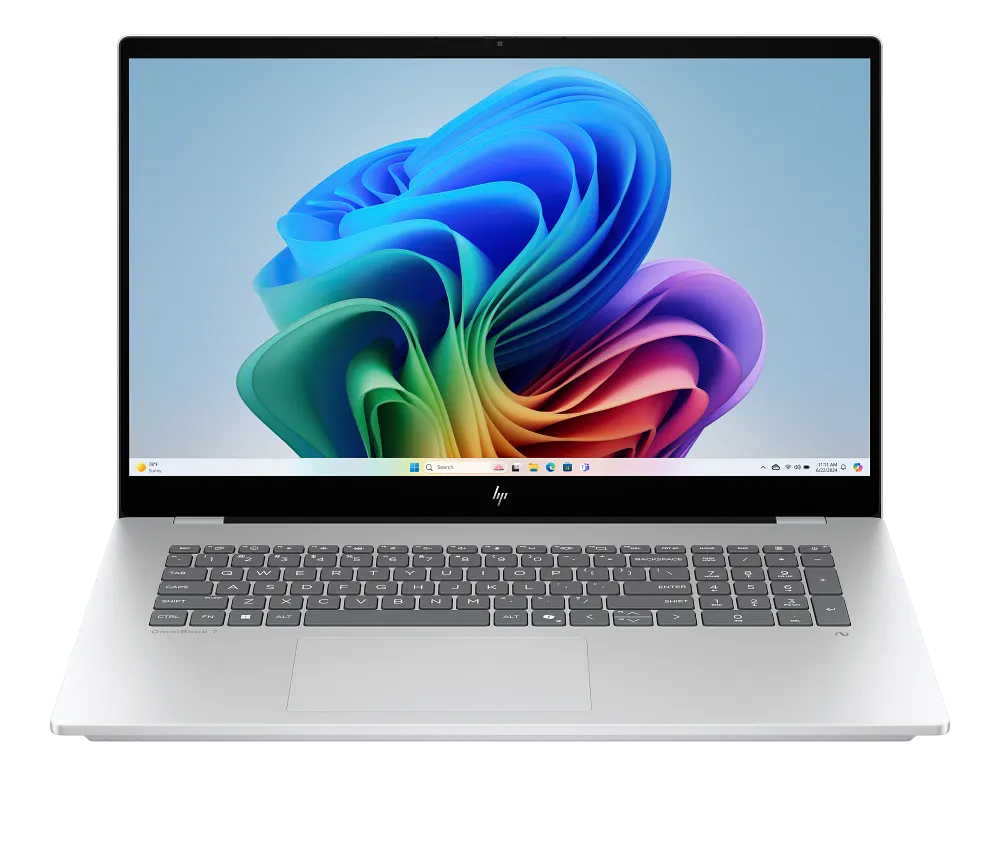
For a large display and a modern hybrid-work setup, the HP OmniBook 7 Laptop Next Gen AI 17t-dc000 is a strong starting point. Its product page lists a 17.3-inch FHD multitouch IPS screen, Windows 11 Home, 16GB memory and a 512GB PCIe NVMe SSD. The Intel Core Ultra 5 226V processor and Intel Arc 130V graphics make it a practical fit for everyday productivity, streaming and light creative work. Compare the HP OmniBook 7 details before you decide whether the larger format suits your desk.
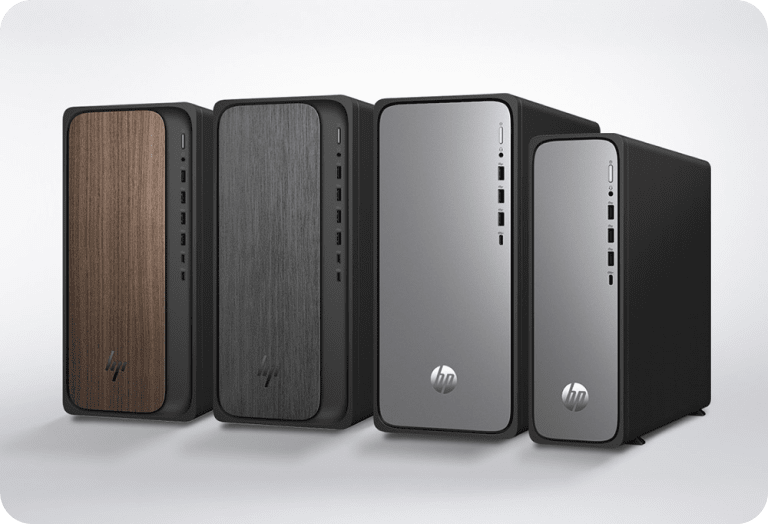
If the computer will stay in one room, compare an HP OmniDesk desktop with the laptop. A desktop setup makes it easier to choose a larger external screen, full-size keyboard and separate accessories. For demanding professional work, HP also presents Z workstations designed for heavier workloads. Browse HP Z workstation options and compare HP laptops side by side.
- Choose a laptop for flexibility and shared spaces
- Choose a desktop for a dedicated desk and simpler upgrades
- Choose a workstation when your software and files are unusually demanding
Screen comfort
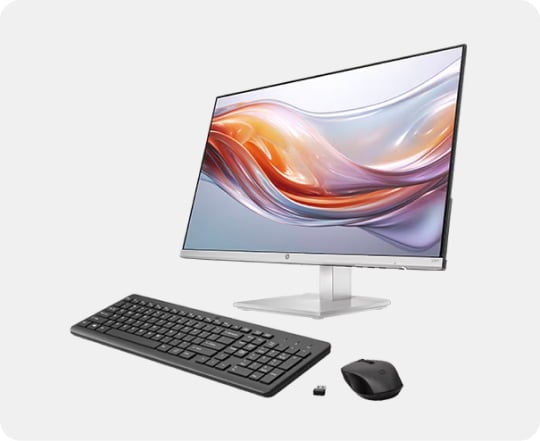
Once the computer is chosen, look at the screen. A larger monitor can reduce window juggling, especially when research, notes and a video call need to stay visible together. The HP Series 5 Pro 527pu 27-inch QHD USB-C Monitor is worth checking for a home office because its name signals the essentials: a 27-inch panel, QHD resolution and USB-C connectivity. See the HP Series 5 Pro 527pu page for the current configuration and price.
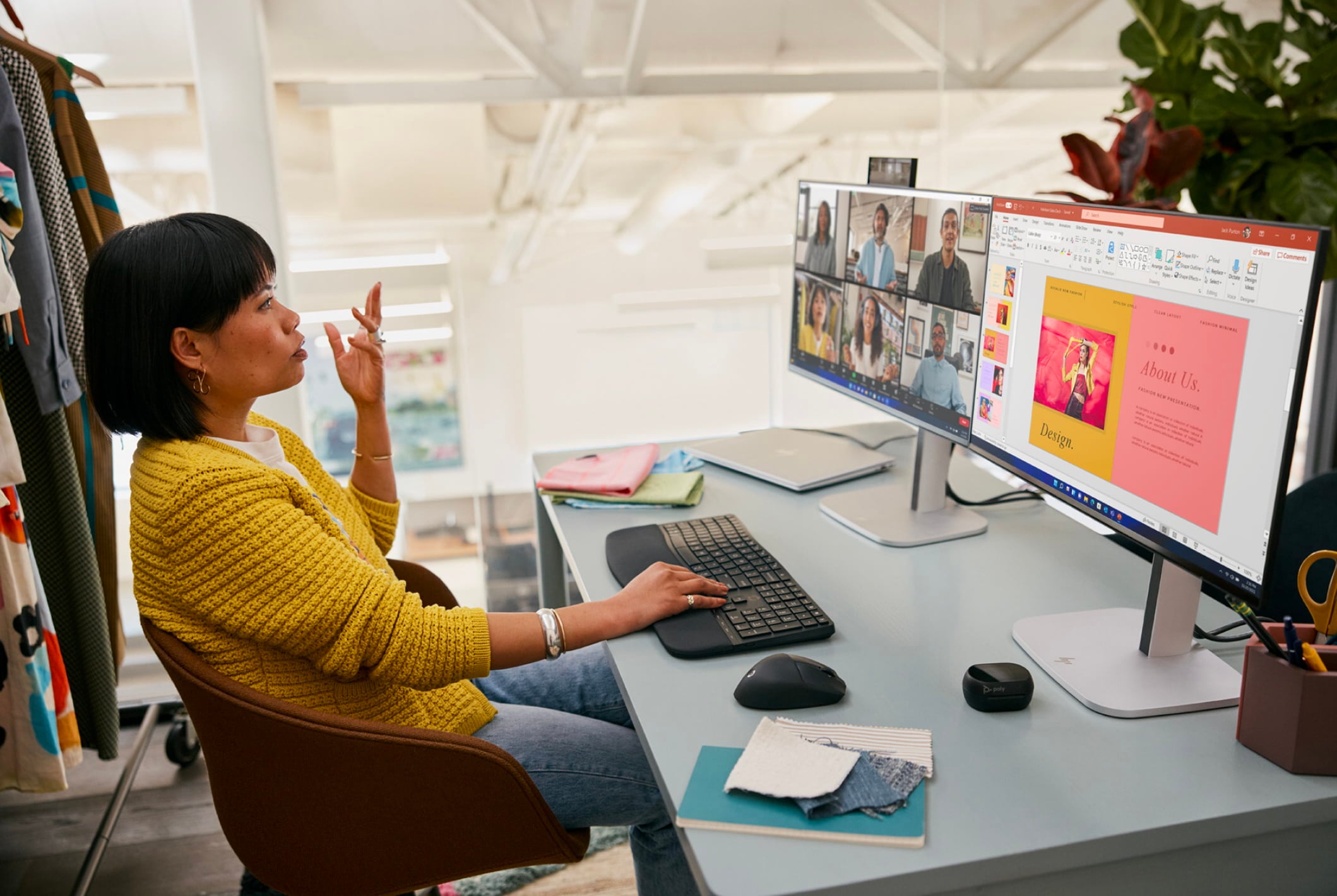
Place the top of the display near eye level, leave enough depth for comfortable viewing and check which ports your laptop supports. If you want one cable for display and charging, confirm the exact USB-C capabilities before checkout. The right connection can make a bigger daily difference than a minor processor upgrade.
Printing plans
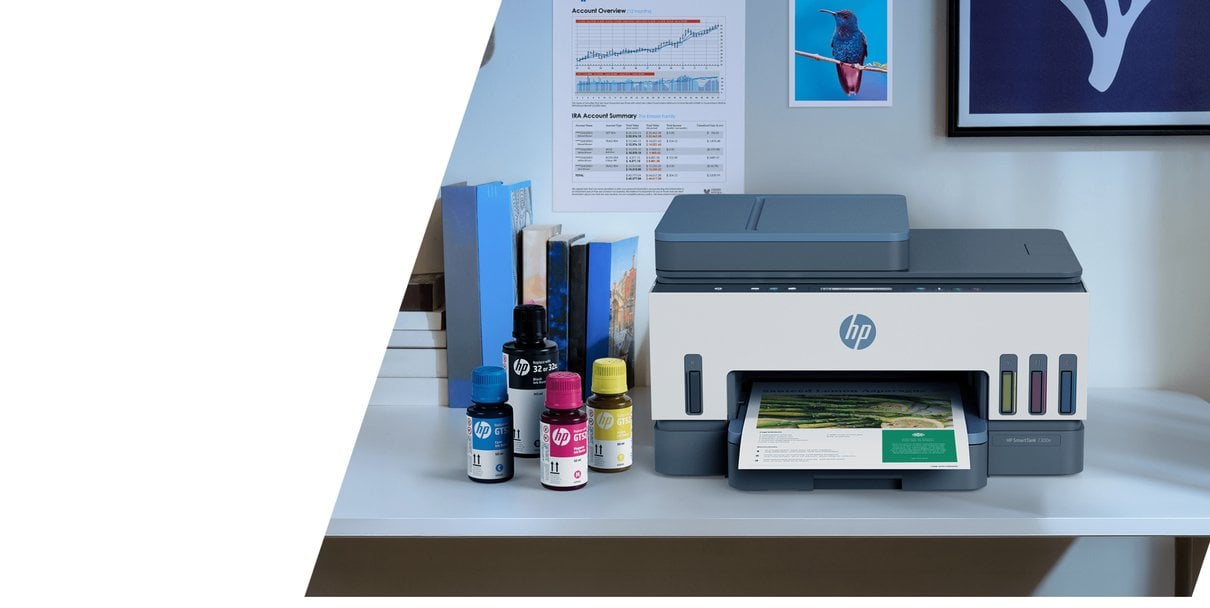
Ask how often you print and what you print. Occasional forms may need a compact all-in-one, while schoolwork, recipes and family photos can justify a refill-focused model. The HP Smart Tank 7305 All-in-One Printer is a concrete option to investigate for home use. Check the HP Smart Tank 7305 and review HP printing support before comparing running costs.
- Estimate pages per month before choosing a printer
- Check whether you need colour, scanning or copying
- Compare refill or subscription options with the upfront price
- Leave a little room around the printer for paper and cables
HP also offers Instant Ink and an All-In Plan in selected markets. These services can change the ownership calculation by combining a printer with ink delivery or support. Availability and pricing can vary, so treat the advertised monthly figure as a prompt to read the current terms, not as a universal total.
Daily desk details
A good desk is more than a computer. Add the accessories that remove friction: a comfortable mouse, a keyboard that fits your typing style, a webcam or headset for calls, and a reliable way to organise power. HP Store also groups monitors and accessories, making it easier to keep compatibility in view. Shop HP monitors and accessories and check current laptop deals as the final comparison step.
Before paying, check the product page for delivery, warranty, compatibility and current promotional terms. HP highlights official support, warranty checks and recycling information, which can be valuable when you want one place to manage the setup. review warranty support and see current HP Store offers before placing an order.
Setup strengths
- A broad range makes it easier to build one coordinated setup
- AI laptop options cover flexible work and study
- Printer plans can simplify recurring ink decisions
- Official support and warranty information are easy to find
Practical checks
- Product prices and availability can change
- Check regional compatibility before ordering in Australia
- Monthly printer plans need a careful terms comparison
- The biggest screen is not always the best fit for a small desk
Use your notes, choose the component that solves the biggest daily irritation first, then add the rest around it. That measured approach makes the HP Store range feel less overwhelming and helps you spend on the features you will genuinely use.